








Creative Ways to Present Data in PowerPoint
- Effective presentations combine data visualization with storytelling to make complex information accessible.
- Select the appropriate chart type and design method based on the data you are handling, audience requirements, and presentation objectives.
- A smart AI presentation generator can show you the best way to automatically structure and present data in PowerPoint, leading to better decision-making and engagement.
- Eliminate unnecessary visual elements to enable audiences to focus on data presentations.
- Gradually reveal information to assist listeners in understanding complicated data sets.
The way you present your data may either captivate your audience or disorient them, based on how you do it. In this guide, we’ll discuss creative ways to present data effectively in PowerPoint presentations, tailored to the specific data type.
How to Present Data in PowerPoint Effectively: A Step-by-Step Guide
Many presenters commit the mistake of thinking the data can speak for itself. However, even the most important findings are lost without context, interpretation, and strategic design.

Presenting data requires more than dumping spreadsheets onto slides. Your audience must not only understand what the data indicates, but also why it’s important and what they should do next. You can learn how to present data in PowerPoint by understanding what are the key steps that will turn your raw data into presentations that will inform, persuade, and inspire others to take action.
Start with Your Core Message
Before launching PowerPoint presentation software or any other data visualization tool, consider the following question: “What would I want my audience to remember about this data, should they only remember one thing?” All column charts, graphs, and visual elements must help you drive home your message.
Take every piece of data as a stepping stone in your argument, transforming your presentation into a strategic communication tool. If you are interested, we also have an article about impactful business presentation ideas that will allow you to start thinking outside the box.
Select the Appropriate Data Visualization for Your Type of Data
Various types of data require various visualization methods. Time series naturally lend themselves to line charts, whereas bar charts are best suited for comparisons between categories. Pie charts or donut charts are great for proportions and percentages, but they should be used sparingly because they may be hard to interpret when there are different categories.

Scatter plots or bubble charts can be used to demonstrate the relationships between two or more variables. Geographic data benefits from color-coded maps. The idea is to align the visualization with the natural structure of the data, to make patterns instantly apparent to your audience.
Tell the Story with Your Data
Each dataset has a storyline. Organize your data presentation like this:
- starting point (context and baseline),
- middle (the data and what it reveals),
- end (implications and recommendations).
Apply storytelling techniques and create tension and resolution. Identify a problem in your data, develop an understanding of its impact, and then present solutions supported by additional data. This storytelling approach makes for engaging presentations that will make your findings memorable.
As a presenter, incorporate narration into your presentation to make the most of the relevant data you want to present.
Simplify Complex Datasets
Raw data may be overwhelming: it’s your task to make it digestible and easy for your audience to understand. Therefore, eliminate what is not necessary and concentrate on the points that directly reinforce your message.
Begin with general information on one slide, and only proceed to additional details on the following slides. This approach won’t waste the time of your audience and will give detailed information to those who require it.
Insert Excel Spreadsheets Strategically
So, how to present Excel data in PowerPoint? In live presentations where data may be dynamic, link your charts to the source to make sure that your presentation always reflects up-to-date data.
Keep these links up and running, and don’t forget to test all the elements that are embedded in advance to prevent technical difficulties during delivery.
Use Consistent Design Principles
Visual consistency creates trust and understanding. Come up with a color scheme that matches your brand and use it consistently in your presentation. Use color to emphasize key data points or trends.
Keep font sizes, chart styles, and spacing the same throughout your presentation. This uniformity enables your audience to concentrate on the data itself without having to adapt to new visual formats on each slide.
Showcase Data Analysis Results
In delivering analytical results, take your audience through your process in a few words before you draw your conclusions. Provide captions to describe important findings or surprising results.

Moreover, prepare slides that summarize several data points. Decision-makers like it when you have already done the interpretive work, translating analysis into strategic recommendations.
Manage Financial Data Points with Precision
Financial presentations require precision and clarity. Apply consistent currency formatting, clearly label fiscal periods, and provide comparison points (year-over-year, quarter-over-quarter) to provide content.
While PowerPoint is ideal for high-level financial summaries, if your data needs to be organized into a comprehensive, high-volume inventory format, our AI ppt platform can instantly generate multi-page, print-ready documents that bridge the gap between presentations and reports.
Take Advantage of Demographic Data Visualization
Population pyramids, geographic maps, and segmentation charts are useful in demographic PowerPoint presentations. Overlay demographic data with behavioral or preference data to tell more interesting stories about your audience or market.
So, how to present demographic data in PowerPoint? Humanize demographic statistics using icons and illustrations alongside charts. By doing so, you’ll make your data more relatable. As an example, match a chart showing age distribution with icons or pictures of various age groups.
Contextualize Numbers with Real-World Examples
When presenting large numbers or elevated percentages, place them in real-world contexts that make the scale easily understandable. Human stories bring data to life. “73% of customers report satisfaction” is more convincing when accompanied by one simple customer success story.
The best thing about these translations is that they enable non-technical audiences to understand the magnitude and impact without having to do mental calculations.
Display Qualitative Data Effectively
Not all data is numerical. Interpretations of qualitative data that come from interviews, surveys, or case studies need alternative presentation methods. Highlight relevant customer feedback using quotation marks. Word clouds can also be created to visualize common themes based on open-ended responses.
How to present qualitative data in PowerPoint? Organize qualitative results in distinct categories or themes. A visual hierarchy helps viewers navigate abstract concepts and interpret numerical information.
Best Data Visualization Techniques for PowerPoint
Modern audiences demand presentations that make data accessible and more visually appealing. Think about the following methods to use data effectively in presentations.
How to Represent Data Trends on a PowerPoint
Trend lines and forecast projections should be combined with solid and dashed lines, respectively. This difference assists viewers in differentiating between two different types of data: what’s proven and what’s forecasted.
Several trend lines work well in comparisons, but shouldn’t exceed 3-4 lines to avoid visual clutter. Color and line weight should be used strategically to highlight the most significant trend.
Master Advanced Chart Types
In addition to simple bar and line charts, sophisticated data visuals convey intricate relationships. Gantt charts indicate project timelines and dependencies. Heat maps are used to display data trends in big data settings using color intensity. Funnel charts are used to show conversion processes or sales pipelines.
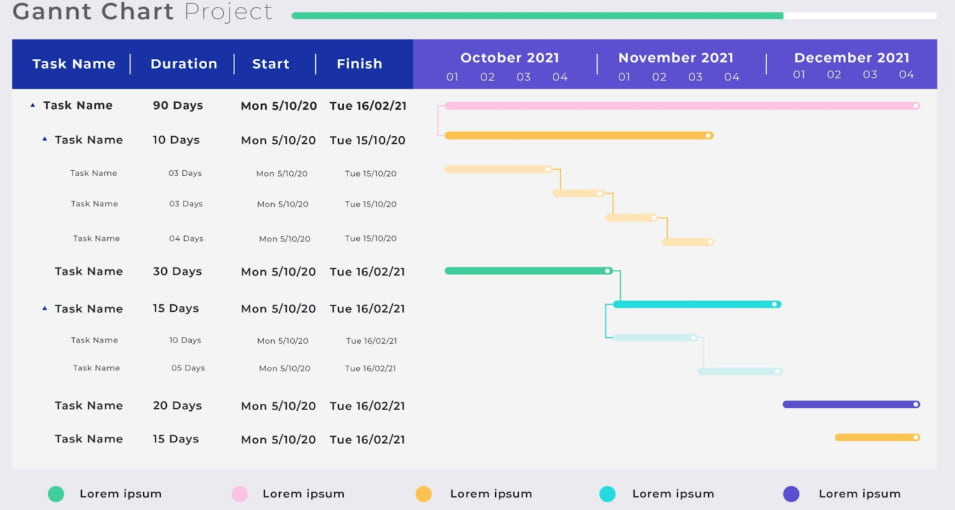
Sankey diagrams indicate flow and distribution, making them ideal for budget allocations or customer journey mapping. It’s one of the best ways to provide a lot of information in a clear and concise manner.
Best Practices in PowerPoint Data Presentation
Even though you have learned data visualization fundamentals and the main techniques, minor design faults can still sabotage your delivery. The tips below will alert you against:
- losing the attention of the audience in the middle of your presentation;
- animation that doesn’t add any value to your presentation deck;
- slides that look fantastic on laptops but not on big screens.
In fact, effective presentation of data in PowerPoint presentations requires complete mastery of both technical and communication skills. Find out more about why presentation skills are important by simply reading our article.
Point out Major Findings Immediately
Don’t make audiences work to find key information. Highlight important data with color contrast, size variation, or animation to draw attention to it. Write descriptive titles that tell what the insight is.
Rather than “Q4 Sales by Region”, use “Western Region Met Sales Targets by 23% in Q4.” This is a way of making your point clear.
Use Animation Purposefully
Show data gradually with animation, and control the audience’s attention as you construct complex charts little by little. Emphasize certain data points with slight motion effects to attract attention to certain information over time.
Test Your Presentation on Different Displays
Presentation of data often fails since charts that appeared clear on your laptop aren’t readable on the conference room screens. Thus, increase font size systematically. Make charts simpler and make sure that color choices are visible in various lighting situations.
5 Questions to Ask Before You Start Your Data Presentation
We highly encourage you to plan your strategy before you make your presentation. Try to answer the following questions first.
What Decision Does this Data Inform?
Clear objectives will save you time and will result in better outcomes. Do you want a budget increase? Do you want to demonstrate the program success to secure further funding? Or again, do you want to identify the problems that need to be solved?
You must clearly connect information to decisions in your data presentation. When your presentation doesn’t influence a specific outcome, improve your strategy to provide actionable insights.
What’s Your Target Audience and What Are They Interested In?
CFOs are concerned with financial implications, whereas operations teams care about efficiency metrics. Marketing leaders would like to view market research results, and technical teams need a presentation that gives them technical implementation knowledge.
Present your data in a way that matters to the audience. The same data may produce three different types of data presentation based on the audience you’re addressing. If you are into sales, for example, you can read our blog post on how to make a sales presentation.
What’s the Right Level of Detail?
Too much data may overwhelm your listeners, but insufficient data won’t convince them. Strike a balance without overloading them with information. Ensure that you’re aware of the level of expertise of your audience. Executive presentations require top-level information with details in appendices. Methodological depth in the presentation itself may be appreciated by technical audiences.

Prepare optional deep-dive slides that you can skip or explore depending on audience questions. This flexibility shows thoroughness and doesn’t violate time constraints.
What Comparisons Are the Most Important?
What do you get out of a bar chart on the left and different data on the right? Abstract numbers can only be meaningful when compared strategically. Year-over-year growth, your performance against the goals you set, your results compared to the competitors, or before-and-after metrics all give the necessary context.
Select comparisons that clarify your main point. In case you’re showing improvement, disclose the baseline you’ve adopted for your study. When you’re presenting data in PowerPoint and justifying investment, compare the projected returns on investment options.
What Will You Do When Asked about Methodology?
Anticipate data analysts to inquire about the sources of data, sample sizes, and how you conducted your analysis. Be prepared to describe confidence intervals, margin of error, or statistical significance.
When your data has gaps or limits, acknowledge them proactively instead of wishing that no one will notice. This sincerity makes you considerate and reliable.
Advanced Data Presentation Techniques for Executives and Stakeholders
High-stakes presentations require sophisticated methods that reflect both strategic thinking and analytical rigor. Let’s look into them now.
Design Executive Dashboard Layouts
Dashboard designs display various related metrics on one slide, imitating business intelligence tools. Group KPIs in a logical way, apply consistent layouts for similar types of metrics, and emphasize exceptions or alerts.
Good dashboards have trend indicators (up/down arrows) and comparison metrics (vs. last period, vs. target).
Develop Scenario Comparison Frameworks
When offering options, use side-by-side comparisons that evaluate each situation on similar grounds. Matrix layouts use:
- scenarios as columns,
- evaluation criteria as rows,
- graphical displays of what option performs best in each dimension.
This systematic methodology facilitates the use of data in decision-making by rendering trade-offs explicit and comparable. Color coding helps audiences quickly identify the best options.
Remote and Hybrid Audience Design
Presentations of data are addressed more and more to a mix of face-to-face and online audiences. Optimize your presentation material for screen sharing with increased contrast and font size.

Take breaks to allow questions to be asked by the remote audience, and consider using polling or reaction features to make the data is understood for sure.
Take Advantage of AI Design Automation
You no longer need to hire expensive presentation designers or manually wrestle with PowerPoint templates for critical meetings. By using Decksy, the market’s leading AI presentation generator, you can instantly transform raw data into a boardroom-ready deck without having to do any of the design work yourself.
Creative Ways to Present Data That Suit Your Objectives
You may present financial projections, demographic data, or analytical results, but the principle is the same. That is: effective data presentations make complicated information accessible, linking knowledge to action. All data visualization options, color choices, and layout decisions must serve your end objective.
Smart AI design automation can make the difference between success and failure in presentations where the stakes are especially high. The investment in a powerful AI generator is fully compensated by the level of audience engagement, message retention, and business results, all delivered in seconds instead of days.
FAQ
How to embed data in PowerPoint?
For static data, paste as a picture or directly insert charts using Insert > Chart. It’s also possible to insert whole Excel files via Insert > Object > Create from File. Whereas, to have a live link that is automatically updated, use Paste Special > Paste Link > Microsoft Excel Worksheet Object.
What’s the best way to present data in PowerPoint effectively?
The most effective method entails the right choice of charts. This means selecting a data visualization type that suits your data structure and simplifies complex information. Also, remember to tie all the
How to present data analysis in PowerPoint?
Begin with your methodology and main findings, and back up conclusions with detailed charts and data visualizations. Annotate to explain results. Then, prepare summary slides that will summarize your insights, which will enable you to convert your analysis into actionable recommendations. Remember that gradual disclosure assists viewers in tracking your analytical process.
What are the most frequent errors when presenting financial data?
Among the most frequent errors we can find are inconsistent formatting, overly complicated charts, and a lack of explanations for significant variances. How to present financial data in PowerPoint, then? Waterfall charts are useful in demonstrating the contribution of individual factors to financial changes, while dashboard-like designs are effective in providing an overall financial picture, providing similar metrics clustering.

On Decksy.com, where people come looking for clarity wrapped in a bit of personality, Julia leans into the details that make a message land: the pause between two ideas, the subtle shift in spacing, the moment a visual finally clicks.